

A Simple Pathway for Overwhelmed Ministry Leaders
How to turn Logos into a calm, searchable workspace for ministry and devotional life.

Most ministry leaders don’t need more Logos features—they need a calmer way to use the ones already in front of them. If you’ve ever opened Logos and felt like you were stepping into a crowded control room instead of a quiet study with your Bible, you’re not failing; you’re just engaging with a very powerful tool that was never designed to impose a single workflow on every pastor, teacher, or worship leader.
This article is inspired by a recent one‑on‑one coaching call I had with a ministry leader whose team serves in multiple countries. As we walked through his teaching prep, note taking, and daily devotional reading, it became clear that the real need wasn’t more features—it was one simple, repeatable way to let Logos quietly serve his calling, without adding to the mental load he already carries.
Start with one simple teaching layout
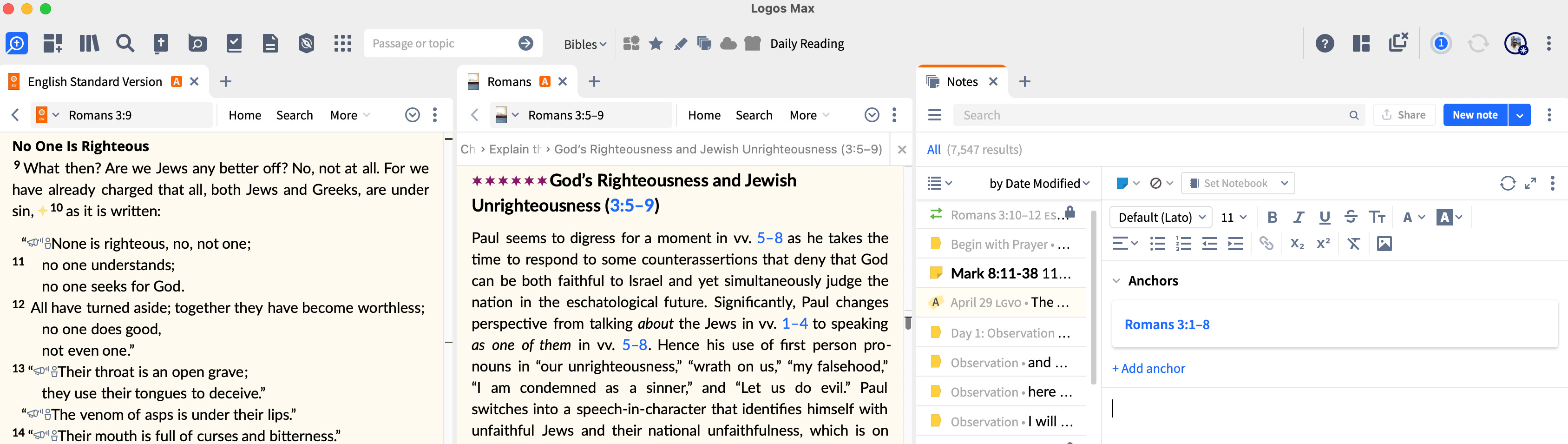
Before chasing features, give yourself one home base—a layout you can open for almost everything: sermon prep, lesson planning, or a focused devotional time.
A helpful starter layout can be:
Left: Your preferred Bible translation.
Right: Your go‑to commentary series for this season.
Bottom (or side): Logos Notes, anchored to the passage you’re studying.
Once you arrange this, pin it to your Logos toolbar so it’s always one click away instead of rebuilding it every week. Pinning a custom layout like this means you return to the same “desk” each time you sit down to meet the Lord in his Word and prepare to serve his people.
From here, everything else in this article simply adds depth to that one layout—you’re not creating ten workflows, just strengthening one.
Let Notes become your ministry workspace
For many leaders, Logos Notes quietly becomes the center of gravity, because it ties your Bible, commentary, and lifelong writing together. It’s where “sermon prep,” “personal reflection,” and “pastoral care” finally start to live in the same place instead of different apps and notebooks.
A few gentle practices:
Create a small set of Notebooks.
One for this year’s sermons or lessons.
One for long‑term theological questions.
One for personal/devotional insights.
Anchor notes to passages instead of scattering them.
When a thought or quote belongs with a verse, anchor it there so the icon appears in your Bible next time you visit the passage.
This turns your Bible into a living map of your own study history over time.
Use deep links when you need to connect tools.
Logos lets you copy a link to any resource location, search result, or tool via Copy link or Copy location.
You can paste that link into an external note system or document, or bring an external link into Logos, so your “second brain” can move in both directions.
Learn more: How to create links to Logos content (deep links)
You don’t have to build a complex system on day one; just let today’s real questions decide which notebook gets another note. Notes becomes your ministry workspace when you stop asking “What can I do with this?” and start asking “What do I actually need to remember?”
Turn decades of writing into Personal Books
Many pastors have file cabinets, hard drives, and old notebooks full of sermons, series, and essays. You carry them like a secret archive: materials you can’t quite let go of, but can’t easily retrieve when you need them.
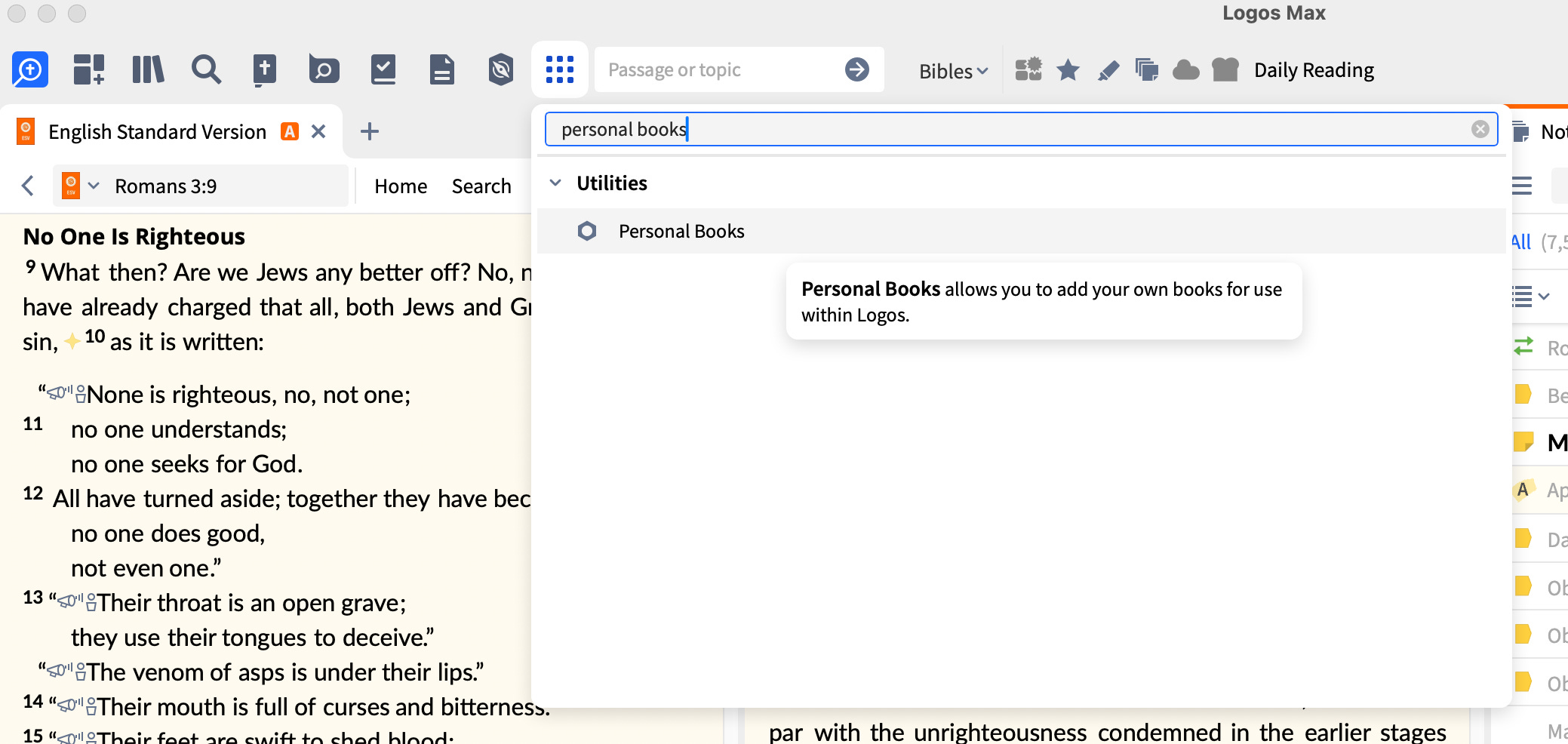
Logos Personal Books lets you gather those materials into real, searchable resources inside your library so they’re not just buried in folders, but actually part of your study flow.
Here is a simple path:
Pick one series or topic you’ve already taught.
Move your manuscripts, outlines, or essays into one or more .docx files.
In Logos desktop, open Tools → Personal Books, click Add book, and attach those .docx files.
Build the book, give it a simple cover and description, and let Logos index it.
Once it’s built, your work behaves almost like any other Logos resource:
It appears in your Library and can be opened beside your Bible or commentary.
It shows up in searches, so when you study Romans again you’ll see your own previous series among the results.
Learn more: How to add and manage Personal Books
Learn more: About Personal Books (community guide)
You don’t have to migrate everything at once. Even one or two key series inside Logos can save you hours and remind you how faithfully God has been teaching you over the years.
Redeem your shelves with the Print Library Catalog
If you’re like most ministry leaders, your physical shelves hold decades of wisdom. The problem is that, under pressure, you tend to reach only for whatever you remember—and you forget how much is actually there.
Logos’s Print Library Catalog lets you add many of those physical books into your Logos Library so they appear in searches and Factbook, even though you still read them in print.
In practice this means:
You open the Logos Library and click Add to Library, then search for titles you own and mark them as In Print Library.
You can also scan ISBNs from the Logos mobile app to add books quickly.
When you run a search or open a Factbook article, Logos includes results from those print books and shows you the page numbers so you can pull them off the shelf.
This is especially powerful for leaders with Gold‑level or higher libraries or the equivalent feature set, where Print Library is included.
It turns your study into one connected library instead of two competing ones.
Here are great places to get more familiar with Print Library from Logos:
Keep Factbook at your elbow
Factbook is one of the most pastor‑friendly tools in Logos, especially when it’s part of your everyday layout. Think of it as a Bible encyclopedia that pulls together people, places, themes, and topics from across your digital and print libraries.
A simple rhythm:
As you read or prepare, right‑click a person, place, or concept and open Factbook.
Let Factbook give you a quick overview, key passages, and links into your dictionaries, encyclopedias, and commentaries.
With recent updates, Factbook can now surface relevant content not only from downloaded books but also from the cloud and from your Print Library Catalog.
You don’t need to chase every link. Use Factbook like a trusted elder at the table—when you hit a question that really matters for your people, ask it for help and then return to the text with fresh clarity.
Let AI tools handle the first draft of your research
For many, “AI” sounds like one more thing to master. But in Logos, the AI tools are designed to serve you quietly in the background as a research assistant, not as a replacement for your study.
Learn more: How to use AI Tools for Research and Writing
Learn more: Logos 46.0 (includes Study Assistant AI)
Two simple ways to begin:
Use Smart Search or All Search with summarization.
Ask a focused question, like “How did the doctrine of the Trinity develop?”
Logos will search your library and the broader Logos catalog, then provide a synopsis with links back to the actual articles.
Open Study Assistant when you’re stuck.
Study Assistant is an AI‑powered companion that lets you ask follow‑up questions in natural language and then points you back to the books that support each answer, with citations.
These tools are available at higher subscription levels such as Premium, Pro, and Max, which also include expanded AI credit allowances for regular use.
Let them do the first sweep of the forest, and then you walk the trails yourself with Bible and notebook in hand.
A simple path for daily devotions
When you’re already exhausted from ministry, your own time with the Lord can easily become one more “project.” Here’s a light‑weight Logos pattern that keeps devotionals relational, not mechanical:
Open your devotional layout (Bible + one favorite commentary + Notes).
Read a single passage slowly.
When a phrase grips you, drop a short personal note anchored to that verse—no more than two or three sentences.
If a question arises, right‑click the key word and open Factbook, then glance at one or two entries without falling down a rabbit hole.
Close Logos with one clear takeaway written in your Notes so that tomorrow you see yesterday’s grace waiting for you.
Learn more: Get Started with Logos (intro guide)
Over time, that anchored notebook quietly becomes a journal of your walk with Christ, tied directly to the text instead of buried in separate apps.
A simple path for sermon or teaching prep
For preaching, teaching, or leading a study, you can extend the same layout a few small steps:
Start with the text.
Read it in your main Bible.
Note initial observations and questions in a sermon or series notebook.
Pull in your main commentary.
Read the passage section, capturing insights and potential structures in your Notes panel.
If needed, consult one or two additional commentaries via the Passage Guide for comparison, not for overload.
Consult Factbook and your Print Library only when necessary.
Use Factbook for background on key people, places, or themes.
Let Print Library search tell you when a trusted print commentary or theology on your shelf has something to say, and then go pull that volume for deeper reading.
Use AI tools late in the process.
After you’ve wrestled with the text, consider using Smart Search or Study Assistant to check whether you’ve missed significant angles in your own library.
The goal is not to touch every feature but to walk from text to understanding to clear communication, with Logos simply lighting the path at each step.
A few Logos resources that pair well with this approach
If you want to invest a bit so that this workflow has deeper “soil” to draw from, here are a few Logos products that especially complement what you’ve just read.
Logos Pro subscription (for pastors and preachers)
Logos Pro (Logos Subscription Plans and Pricing) is designed specifically with pastors and sermon preparation in mind, adding advanced tools, AI features, and a curated library on top of the free engine.
Pro‑level subscriptions give access to Smart Search, Study Assistant, additional AI credits, and subscription‑only libraries that help your Notes, Factbook, and searches surface richer results without buying everything at once.
Factbook Feature Expansion
Products like the Factbook Feature Expansion, L add key dictionaries and reference works that make every Factbook search more helpful, especially for background, people, and themes.
Because Factbook draws from these reference works each time you open a topic, even a modest investment here pays off in faster, more confident prep across many passages and series.
The Story of God Bible Commentary series
The The Story of God Bible Commentary (24‑volume base) is an application‑focused series that helps you see each passage inside the grand narrative of Scripture and then live and preach it in today’s world.
It is especially helpful for pastors and teachers who want strong exposition that naturally flows toward illustration and application, making it a steady companion in the right‑hand commentary slot of your main layout.
See also: Story of God Commentary: Old Testament (subset)
You certainly don’t need all of these to get started. But pairing even one of them with a simple, repeatable layout can dramatically reduce your prep‑time anxiety and increase your confidence that you’ve listened well before you speak.
Want to explore a bit more commentary sets? These are great places to start:
A gentle next step for your studies
If Logos currently feels like one more burden on your shoulders, you are not failing. You are a shepherd who cares deeply about feeding people, and you’ve been handed a very powerful tool without much time to learn it.
So let your next step be small:
Choose one layout.
Choose one anchored notebook.
Choose one way to begin gathering your lifetime of writing into Logos.
Then trust that the Lord can use even these quiet, simple structures to multiply your joy in the Word and your fruitfulness in ministry for years to come.
P.S. And if you serve in a ministry or organization that could benefit from introducing others to Logos in a sustainable way, the Logos Partner (affiliate) Program may be worth exploring as well, allowing partners to apply and, if approved, earn from referrals while serving their communities.